

Every visual regression testing run rests on an assumption that nobody ever states out loud: that the screenshot is a fair picture of the page.
Most of the time it is. But not always. A cookie banner fires on the new capture and not the baseline. Cloudflare decides our screenshot bot looks suspicious and serves a challenge page. A hero image never resolves and leaves a grey box. A web font loads late and the layout squashes.
In every one of those cases you still get a comparison, and the comparison is still technically correct — it just isn’t about your deployment. You spend ten minutes working out that the “regression” on 30 pages is a chat widget.
Diffy now runs an AI check over captured screenshots to catch this class of problem, and it’s been running in production since 2025.
What it looks for
After a snapshot finishes, Diffy sends a full-page screenshot to a vision-capable model and asks five specific questions:
- Is a popup or banner blocking the main content? If yes, the model also classifies it — cookie notice, chat widget, or other.
- Are any elements visually stretched or squashed?
- Is content rendered outside its normal layout? Pushed far down the page, or far off to the right.
- Is CDN protection in the way? A Cloudflare, CloudFront, or similar challenge or block page instead of your site.
- Did media fail to load? Images or video placeholders that never resolved, or are still spinning.
The questions are fixed and the answer comes back structured, along with a one- or two-sentence plain-English summary. It isn’t an open-ended “tell me what’s wrong with this page” — it’s a checklist, which is why the output stays consistent enough to act on.
It knows what your masks are
The obvious failure mode for a check like this is that it flags your own configuration as a bug.
If you’ve set up masking or dynamic element stabilization, your screenshots have green rectangles sitting over carousels, ad slots, timestamps, and anything else that changes on every load. To a model seeing the page cold, a green block over a carousel looks a lot like “misplaced content” or “stretched element.”
So Diffy tells it first. When a project uses masked elements or dynamic element stabilization, the prompt explicitly says the green blocks are intentional coverage for dynamic content and should not be treated as regressions.
There’s also a per-project notes field appended to the prompt, for context specific to your site — “the yellow bar at the top is our staging banner,” that kind of thing. If you want something added for your project, ask support.
What you actually see
Two of the five findings surface in the app, as recommendations attached to the screenshot:
CDN protection detected. The recommendation tells you our screenshot IP needs allowlisting in your CDN, gives you the address, and links to the documentation covering Cloudflare, Akamai, and Incapsula.
Popup detected. The recommendation links to the dynamic-elements documentation and points you at Project Settings → Advanced, where you can mask or remove it.
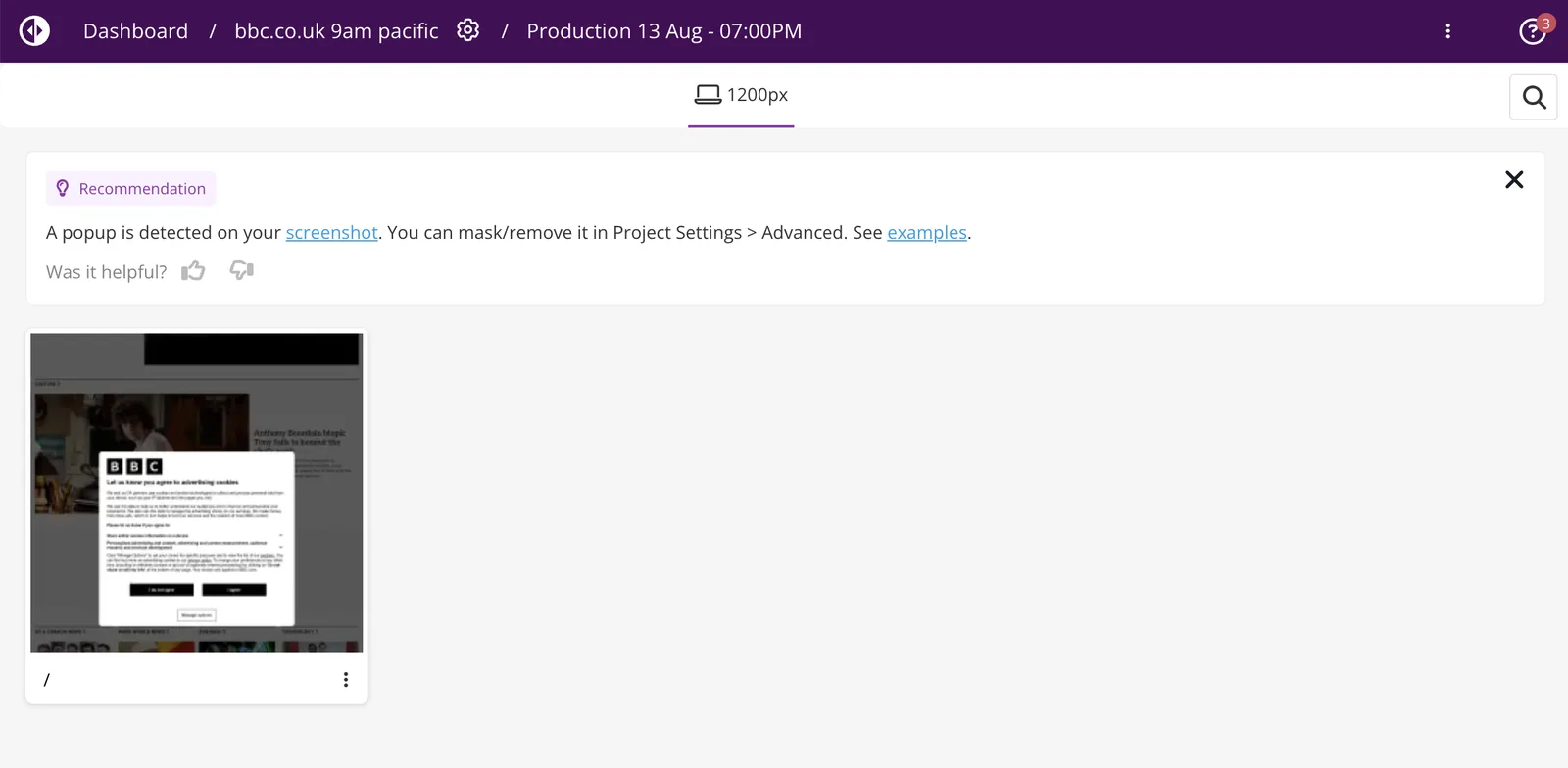 A popup recommendation on a production run — the thumbnail below it shows the cookie dialog that triggered it.
The other three checks — stretched elements, misplaced content, unloaded media — run and are recorded, but they’re used internally rather than shown as recommendations. We review those results ourselves, and if something looks like a genuine bug on your project, we act on it.
Two bits of logic worth knowing about
Both exist because the naive version of this feature is annoying.
If CDN protection is detected, Diffy automatically skips any “authentication issue” recommendations.
If the model reports a popup and CDN protection at the same time, the popup recommendation is suppressed. What reads as an overlay is almost certainly the challenge screen itself, and telling you to go mask it would send you down the wrong path.
If one of the two checks is persistently noisy on your site, we can switch it off for that project entirely.
Feedback loop
Every recommendation carries a thumbs up and a thumbs down. That isn’t decoration — the feedback comes back to us, and it’s how the checks get tuned. If a recommendation is wrong, telling us it’s wrong is the fastest route to it being right.
The honest limits
- It’s a spot check, not full coverage. The check runs at most once per project per day, on a single screenshot. It’s there to catch the systematic problems — the CDN that started challenging us, the cookie banner that appeared after a deployment — not to audit every page in every run.
- It doesn’t touch the comparison. Pixel comparison and the intelligent diff still decide what changed and what the score is. This check runs alongside them, on the input rather than the output.
- It can be wrong. It’s a model looking at an image. That’s what the thumbs down is for.
It’s on by default. If you’ve been getting recommendations about CDN protection or popups and wondered where they came from — this is where.
Related reading: everything Diffy’s AI does, what AI actually does in visual testing, bypassing CDN protection and dealing with dynamic elements.