
Diffy AI: Visual Testing That Explains What Changed
A comparison finishes and tells you the truth: 34 screenshots changed. What it does not tell you is whether that means a broken header on every page, or a blog listing that picked up a new article since the last run. Both look identical in a results list, and you find out which by opening screenshots one at a time.
Diffy’s AI does two jobs, and neither of them is finding the differences. It reads the comparison and writes down what changed, and it checks whether a screenshot was ever fair to compare in the first place.
AI Summary: what changed, in plain English
When a comparison finishes with changes, Diffy sends every changed page — the before image and the after image, at each breakpoint — to a vision model, then rolls those readings into one summary.
What you get back is a short list of bullets in two groups:
- Critical — a section that appeared or disappeared, spacing or padding that changed, a colour change, a breadcrumb that changed.
- Minor — text and images that changed, elements that reflowed, font and shadow differences, anti-aliasing.
Bullets name the pages and breakpoints they refer to, and each reference is a link straight into that screenshot pair. So “the hero banner lost its padding on /about and /contact at 1280px” is one click away from the two images that prove it.
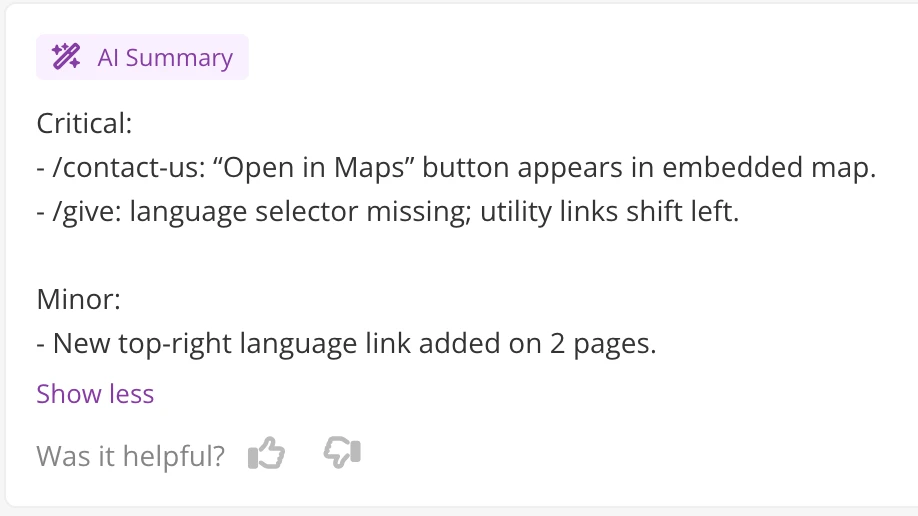
The summary appears as a panel on the comparison, with an estimated time while it is still being written. You can collapse it, dismiss it, and rate it with a thumbs up or down.
It reaches you before you open Diffy
The same summary is attached to the notifications you already use:
- Email, Slack messages and webhook payloads carry the critical and minor bullets, with the pages each one applies to.
- GitHub pull request comments and GitLab merge request comments get it as markdown, under the comparison result.
Notifications wait for the summary rather than racing it — up to an hour — so the first thing you read about a deploy already says what changed, instead of telling you that something did.
Tell it what it cannot see from a screenshot
A model looking at two images has no idea that your right rail is a live feed, or that the brand colour changed on purpose last week. Once AI Summary is enabled, there is a free-text instruction for the project under Project Settings → Advanced → AI, and it is yours to edit — not something you have to ask us to change.
In our experience it is the highest-leverage thing you can do with the feature. One or two sentences of context turn “the sidebar content changed on every page” into a summary that skips straight past it.
AI screenshot checks: is this screenshot even fair?
Every visual regression test rests on an assumption nobody says out loud: that the screenshot is a fair picture of the page. Usually it is. Sometimes a cookie banner fires on the new capture and not the baseline, a CDN decides our browser looks suspicious and serves a challenge page, or a hero image never resolves and leaves a grey box. The comparison dutifully reports a huge difference, and it is not a bug in your site.
Diffy samples a screenshot and looks at it for exactly those problems: popups, cookie notices and chat widgets covering the content; CDN protection challenge pages; elements stretched or squashed; content rendered somewhere it should not be; images and video that never loaded.
Two of them turn into a recommendation on the screenshot itself:
- A popup was detected — with a pointer to the settings that mask or dismiss it.
- CDN protection was triggered — with the IP address to allow through, and a link to the documentation for getting past it.
It also knows what you have already dealt with. If you mask dynamic elements or exclude blocks, the green blocks that leaves behind are not reported as broken layout.
This runs on every project with no setup and nothing to turn on.
Run Diffy from Claude Code
Diffy’s skills plugin lets Claude take screenshots of your local site and compare them against staging or production, without you opening the Diffy UI — ask in plain English, and the results come back into the conversation where the agent can act on them. There is a full walkthrough of the Claude Code plugin, and the plugin is open source on GitHub.
The plugin drives the Diffy CLI, which authenticates with an API key. API access is included in every plan, the free one too.
What is deliberately not AI
The comparison. Deciding that two screenshots differ runs in two deterministic stages before any model is involved: a pixel comparison that produces a numeric score, then a pass that groups the changed pixels into regions. Run the same two images through it twice and you get the same answer twice, today and in six months. That is the part a CI gate reads, so no model touches it.
The AI layer sits on top and is only ever descriptive. It does not approve a change, suppress one, or decide what counts as a regression. If it writes something wrong, the screenshots are still right there underneath it.
We wrote more about where that line falls across the whole category in AI visual testing: what it actually does (and doesn’t).
The honest limits
We would rather you know these now:
- AI Summary is enabled per project, by us. There is no switch in your project settings today — the instruction field above is yours, the on/off is not. Email support@diffy.website with the project you want it on. It is new, it costs real money to run per comparison, and we would rather turn it on for people who want it and hear what they think than ship it everywhere and guess.
- Comparisons over 80 changed page-and-breakpoint pairs are skipped, not summarised.
- The screenshot check samples one screenshot per project per day. It is a health check that catches a systemic problem — a banner on every page, a CDN challenging every request — not a scan of every image.
- Three of the five things the screenshot check looks for do not surface as recommendations yet. Stretched elements, misplaced content and unloaded media are recorded, but only popups and CDN protection are shown to you.
- The model is sometimes wrong. That is what the thumbs up and down are for.
Where to go next
- AI Summary in detail — how it classifies a change, and how to give it context about your site.
- AI screenshot checks in detail — what it looks for and what you actually see.
- What visual regression testing is — if you are new to the idea.
- Pricing — the free plan is 500 screenshots a month.
Create a free account and run your first comparison in a few minutes.