

Playwright ships visual regression testing in the box. One assertion, expect(page).toHaveScreenshot(), captures a page, stores it as a baseline the first time, and fails the test on every later run where the page no longer matches. No plugin, no extra service, no second tool to keep in sync with your browser.
Getting that assertion to pass reliably is a different job. Screenshots are the most sensitive test you can write: a date in the footer, a spinner mid-rotation, a font that loaded 50ms late, or a laptop running macOS instead of Linux will all fail the build without anything being broken.
This guide walks through a setup that holds up: the first test, where baselines live, how to make screenshots deterministic, how to tune tolerances, how to cover several viewports, and how to run the whole thing in CI. The test code and configuration below were run against Playwright 1.63.0, the current release at the time of writing; the CI workflow is Playwright’s own published example.
The first visual test
If you already use Playwright Test, there is nothing to install. If you don’t:
npm init playwright@latestA visual test is an ordinary test with a screenshot assertion at the end:
// tests/visual.spec.ts
import { test, expect } from '@playwright/test';

test('homepage', async ({ page }) => {
  await page.goto('/');
  await expect(page).toHaveScreenshot('home.png', { fullPage: true });
});
Run it with npx playwright test. The first run fails:
Error: A snapshot doesn't exist at tests/visual.spec.ts-snapshots/home-desktop-linux.png, writing actual.There was nothing to compare against, so Playwright wrote the screenshot as the new baseline and marked the test failed — a missing baseline never passes silently. Run it again and it passes. From then on, any visible change fails the test and Playwright writes three images into test-results/: the expected baseline, the actual screenshot, and a diff with the changed pixels in red.
Two details of toHaveScreenshot() do a lot of quiet work:
- It doesn’t take one screenshot. It keeps capturing until two consecutive screenshots are identical, then compares the last one. That absorbs a lot of “still settling” flakiness a fixed
waitForTimeoutwould not. fullPagedefaults tofalse, so without it you only test the viewport. For most marketing and content pages you want the full page.
Where baselines live, and why the filename includes your OS
Baselines are stored next to the test file, in a folder named after it:
tests/
  visual.spec.ts
  visual.spec.ts-snapshots/
    home-desktop-linux.png
    home-mobile-linux.png
The filename is your screenshot name plus the project name from playwright.config.ts plus the platform (linux, darwin, win32). The platform suffix is deliberate. Playwright’s docs are blunt about it: browser rendering “can vary based on the host OS, version, settings, hardware, power source (battery vs. power adapter), headless mode, and other factors.” Fonts render differently on macOS and Linux, and that alone can mark the edges of every line of text as changed.
The practical rule that follows: generate and update baselines in the same environment CI uses, not on your laptop. We cover how in the CI section below. Commit the -snapshots folders to git; they are your source of truth, and reviewing a baseline change in a pull request is how you approve a visual change.
If you want a different layout — say all baselines in one folder — snapshotPathTemplate in the config controls it:
snapshotPathTemplate: '{testDir}/__screenshots__/{testFilePath}/{arg}-{projectName}{ext}',Dropping {platform} from the template is tempting and a mistake unless every run, local and CI, happens in the same container.
Make screenshots deterministic
This is where visual tests are won or lost. The goal is that two runs against unchanged code produce the same pixels. (Our screenshot testing guide covers the same problem independent of any tool; this section is the Playwright-specific version.) Here is the full test file we’ll build up to, then each technique in turn:
// tests/visual.spec.ts
import { test, expect } from '@playwright/test';

const pages = [
  { name: 'home', path: '/' },
  { name: 'pricing', path: '/pricing/' },
];

test.beforeEach(async ({ page }) => {
  // 1. Freeze "now" so dates and relative times render the same every run.
  await page.clock.setFixedTime(new Date('2026-01-15T10:00:00Z'));

  // 2. Replace live API data with a fixture.
  await page.route('**/api/news.json', route =>
    route.fulfill({ json: ['Fixed headline one', 'Fixed headline two'] }),
  );
});

for (const { name, path } of pages) {
  test(`${name} looks right`, async ({ page }) => {
    await page.goto(path);

    // 3. Don't capture before web fonts have loaded.
    await page.evaluate(() => document.fonts.ready);

    await expect(page).toHaveScreenshot(`${name}.png`, {
      fullPage: true,
      // 4. Paint over values that legitimately change.
      mask: [page.locator('.price')],
    });
  });
}
Animations and the text caret
Handled by default. animations: 'disabled' is the default for toHaveScreenshot(): it stops CSS animations, CSS transitions and Web Animations — finite ones are fast-forwarded to completion, infinite ones are reset to their initial state for the capture. caret: 'hide' hides the blinking text cursor. You only need to touch these if you want the opposite. Motion driven by JavaScript timers — a carousel advancing on setInterval, a Lottie animation — is not covered; hide it with a stylesheet (below) or stop it from the test.
Dates and times: page.clock
A “Last updated 3 minutes ago” line or a copyright year will eventually fail every screenshot. page.clock.setFixedTime() pins Date.now() and new Date() to a value you choose while leaving timers running normally — Playwright’s docs recommend it for exactly this case. Call it before page.goto().
Data from APIs: page.route()
If a section renders from a network call — news, stock levels, recommendations — the pixels change whenever the data does. page.route() intercepts the request and returns a fixture instead, which removes the variation at its source rather than hiding it afterwards. It’s the strongest tool Playwright has for visual stability, and one that screenshot services working from a URL — Diffy included — can’t offer.
Values you can’t stub: mask
For things you can’t or don’t want to fake — a price from the CMS, an ad slot, a user avatar — pass locators to mask. Each one is covered by a solid box, #FF00FF pink by default (change it with maskColor). The box keeps the element’s size, so a layout break around it still fails the test.
Elements you want gone: stylePath
Cookie banners, chat widgets and third-party iframes are better removed than masked. Put the CSS in a file:
/* tests/screenshot.css */
.cookie-banner,
#intercom-container,
iframe[src*="youtube"] {
  visibility: hidden !important;
}
and apply it to every screenshot from the config (shown below). The stylesheet is injected only while the screenshot is taken, so it doesn’t affect the rest of the test. Use visibility: hidden to keep the element’s space in the layout, or display: none to collapse it.
Fonts
document.fonts.ready resolves once the page’s web fonts have finished loading. toHaveScreenshot() also waits for fonts before capturing, so this is belt and braces — but an explicit wait makes the intent obvious to the next person reading the test and costs nothing.
Thresholds: how different is “different”?
Playwright compares screenshots with pixelmatch. Three options control how strict that is:
| Option | Default | What it does |
|---|---|---|
threshold | 0.2 | Per-pixel tolerance for perceived color difference, from 0 (strict) to 1 (lax). Absorbs faint anti-aliasing noise. |
maxDiffPixels | unset | How many pixels may differ before the test fails. |
maxDiffPixelRatio | unset | The same budget as a fraction of the image, 0 to 1. |
With neither budget set, a single differing pixel fails the test. That’s the right default for component screenshots and usually too strict for full pages. Set defaults once in the config and override per assertion where a page needs it:
// playwright.config.ts
import { defineConfig, devices } from '@playwright/test';

export default defineConfig({
  testDir: './tests',
  // The HTML report holds expected/actual/diff images for failed screenshots.
  reporter: [['html', { open: 'never' }]],
  expect: {
    toHaveScreenshot: {
      maxDiffPixelRatio: 0.01,
      stylePath: './tests/screenshot.css',
    },
  },
  use: { baseURL: 'http://localhost:4173' },
  webServer: {
    command: 'npm run preview -- --port 4173',
    url: 'http://localhost:4173',
    reuseExistingServer: !process.env.CI,
  },
  projects: [
    { name: 'desktop', use: { ...devices['Desktop Chrome'] } },
    { name: 'mobile', use: { ...devices['Pixel 7'] } },
  ],
});
Resist raising the budget every time a test flakes. A 5% budget on a 1280×4000 page lets 256,000 pixels change — enough to hide a missing button. Fix the source of the noise with the techniques above, and keep the budget small.
There’s one thing thresholds can’t fix. pixelmatch compares each pixel with the pixel at the same coordinates in the baseline. When content moves, everything below the move counts as changed. We added a single line of text to a demo page’s header and re-ran the test:
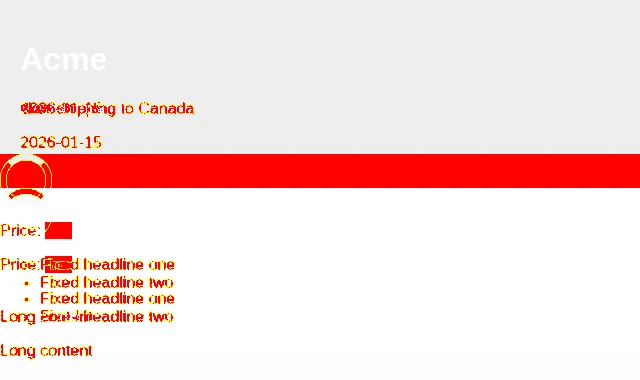
Playwright reported 47,847 differing pixels, and the diff marks the price, the list and the paragraph below it — none of which changed. On a real site, a shared header change fails every page this way, and the diff doesn’t tell you the header is the only thing that moved. That’s not a bug in Playwright; it’s what positional comparison does. Keep it in mind when you read a diff, and consider splitting critical regions into their own element screenshots (next section) so a shift in one doesn’t drown the others.
Several viewports, browsers and components
Viewports and browsers come from projects. The config above runs every test twice — once as a desktop Chrome, once as a Pixel 7 — and each project gets its own baseline (home-desktop-linux.png, home-mobile-linux.png). Add devices['Desktop Safari'] or devices['Desktop Firefox'] for cross-browser coverage; each adds a full set of baselines to maintain, so add browsers your users actually use.
Components use the same assertion on a locator:
test('header', async ({ page }) => {
  await page.goto('/');
  await expect(page.locator('header')).toHaveScreenshot('header.png');
});
Element screenshots are smaller, faster to review, and immune to shifts elsewhere on the page. A good split for most sites: a full-page screenshot per template (home, article, listing, pricing, checkout), plus element screenshots for the pieces that appear everywhere — header, footer, navigation, forms. For how screenshots fit with linting and computed-style assertions, see our guide to CSS testing.
Logged-in pages work the same way once the session exists. Log in once in a setup project, save it with page.context().storageState({ path: 'auth.json' }), and point the projects that need it at that file with use: { storageState: 'auth.json' }.
Updating baselines when the change is intended
When a redesign lands, the screenshots should change. Update them with:
npx playwright test --update-snapshots-u on its own uses the changed mode: it rewrites only baselines that no longer match and leaves the rest untouched. --update-snapshots=all rewrites every baseline; missing (the default when you run without the flag) only creates ones that don’t exist yet.
Before you commit updated baselines, look at what changed. With the HTML reporter enabled (as in the config above), npx playwright show-report opens the report from the last run with the expected, actual and diff images side by side for every failed screenshot. Then review the baseline changes in the pull request like any other diff — GitHub renders image diffs with swipe and onion-skin views.
Running it in CI
Because baselines are per platform, CI and baseline generation have to use the same environment. The simplest way is Playwright’s official Docker image, pinned to the same version as @playwright/test in your package.json. This is Playwright’s own GitHub Actions setup, plus a step that keeps the report when tests fail:
# .github/workflows/visual.yml
name: Visual tests
on:
  pull_request:
jobs:
  visual:
    runs-on: ubuntu-latest
    container:
      image: mcr.microsoft.com/playwright:v1.63.0-noble
      options: --user 1001
    steps:
      - uses: actions/checkout@v6
      - uses: actions/setup-node@v6
        with:
          node-version: lts/*
      - run: npm ci
      - run: npx playwright test
      - uses: actions/upload-artifact@v5
        if: ${{ !cancelled() }}
        with:
          name: playwright-report
          path: playwright-report/
          retention-days: 30
To create or update baselines locally in that same environment, run Playwright inside the image instead of on your machine:
docker run --rm --ipc=host -v "$PWD":/work -w /work \
  mcr.microsoft.com/playwright:v1.63.0-noble \
  /bin/bash -c "npm ci && npx playwright test --update-snapshots"
The -linux baselines it writes will match what CI produces. (npm ci inside the container replaces your node_modules with Linux builds; run npm ci again on your machine afterwards if your project has native dependencies.)
One more habit that pays off: when the image version changes, regenerate all baselines in a separate pull request (--update-snapshots=all). A new Chromium can shift rendering by a pixel here and there, and you don’t want that noise mixed into a feature change.
Where a Playwright-only setup gets hard
Everything above works well for a single application with a handful of templates. The friction shows up as the scope grows:
- Baseline volume. Pages × viewports × browsers, each a PNG committed to git. Fifty pages at three viewports in two browsers is 300 baselines, and a shared header change rewrites all of them in one pull request.
- Shifts flood the diff. As shown above, positional comparison can’t tell “the header grew” from “everything broke”. Someone has to open the report and work out which is which.
- Review lives with developers. The report is an artifact of one CI run. A designer or a client can’t approve a change without someone downloading the report or reading image diffs in a pull request, and last month’s results are gone once the artifact expires.
- It compares against a baseline, not against another environment. Playwright answers “did this page change since the baseline was committed?” Agencies often need a different question answered: “does staging look like production right now?” — before a deploy, or after a CMS or plugin update where there is no code change to attach a test run to.
If those don’t apply to you, stay with Playwright; it’s a very good tool, and we’ve written a longer comparison of Playwright and Diffy that is honest about where Playwright wins. For the wider field, see the best visual regression testing tools in 2026.
Sending Playwright screenshots to Diffy
If they do apply, you don’t have to throw your tests away. Diffy’s own screenshot workers run on Playwright, and the Diffy CLI can upload a folder of Playwright screenshots and compare it with another set in Diffy’s review UI:
# Once: install and authenticate the CLI
wget -O /usr/local/bin/diffy https://github.com/diffywebsite/diffy-cli/releases/latest/download/diffy.phar
chmod a+x /usr/local/bin/diffy
diffy auth:login $DIFFY_API_KEY

# Upload the screenshots from a baseline run and from a new run, then compare
diffy screenshot:create-folder $PROJECT_ID ./screenshots-baseline   # prints a screenshot set ID
diffy screenshot:create-folder $PROJECT_ID ./screenshots-current    # prints another ID
diffy diff:create $PROJECT_ID $BASELINE_ID $CURRENT_ID
Each file path becomes a page in Diffy, and the breakpoint is read from the image width. The screenshots are then stored and compared in Diffy rather than in git. That gets you the comparison algorithm that recognizes vertical shifts, so the header change above shows up as one change instead of a page of red. Changes can be approved from thumbnails, the same change across many pages is grouped so you approve it once, review links work for people without an account, and history is kept for six months on paid plans. The CLI uses the Diffy API, which is available on paid plans; the full walkthrough is in the Playwright integration docs.
Or skip the test code entirely: give Diffy a list of URLs and breakpoints and it captures and compares production, staging and pull-request environments on its own infrastructure. That’s the right fit when the question is “does staging still look like production?” rather than “did my component change?” — and you can trigger it from GitHub Actions on every pull request.
FAQ
Why does my visual test fail on the first run? Because there was no baseline to compare against. Playwright writes the screenshot as the new baseline, reports “A snapshot doesn’t exist … writing actual”, and fails the test so a missing baseline is never mistaken for a pass. The second run compares against it.
Why do the tests pass on my Mac and fail in CI (or the reverse)?
Baselines are per platform — home-desktop-darwin.png and home-desktop-linux.png are different files — and fonts and anti-aliasing render differently across operating systems. Generate and update baselines inside the same Docker image CI runs, as shown above.
What’s the difference between toHaveScreenshot() and toMatchSnapshot()?
toHaveScreenshot() is for screenshots: it waits for the page to be stable, disables animations, and supports masking and thresholds. toMatchSnapshot() compares arbitrary text or binary values you pass in, such as await page.textContent('h1').
How do I ignore a dynamic element?
Stub its data with page.route() or page.clock if you can, mask it if you can’t, or hide it with a stylePath stylesheet if it shouldn’t be in the screenshot at all.
Should I commit screenshots to git?
Yes — the baselines, not test-results/. They are the expected state of your UI, and a pull request that changes them is the review step for a visual change. For very large suites, Git LFS keeps clone sizes manageable.
Can Playwright compare two live environments, like staging against production?
Not directly. toHaveScreenshot() compares against a stored baseline. You can work around it by generating baselines against production and then running the same tests with baseURL pointed at staging, but that’s two runs and a baseline rewrite each time. Tools built for environment comparison, Diffy included, do it in one step.
Try it on your own site
Start with three full-page screenshots of your most important templates and one element screenshot of your header, and get them passing twice in a row in CI before adding more. If you’d rather compare whole environments without maintaining test code, create a free Diffy account — the free plan includes 500 screenshots a month.